
Viewing all events
Ticket events show all the updates and notifications that have occurred to that ticket. Events are not shown by default. You have the option to show ticket events alongside the ticket comments.
Reviewing ticket events can help you trace the path of a ticket and troubleshoot any issues. For example, you can see whether a trigger has fired or what type of browser the end-user was using.
To view ticket events
- If you're using the Zendesk Agent Workspace, open a ticket and click the events icon (
 ) in the conversation header to toggle between ticket conversations and events.
If you're not using the Zendesk Agent workspace, open a ticket and click Conversations under the active comment area, then select Events.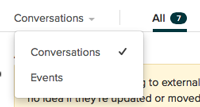
- Review the ticket events displayed.
The events for each ticket update appear separately. For more information about the information shown in events, see Understanding what is shown in ticket events.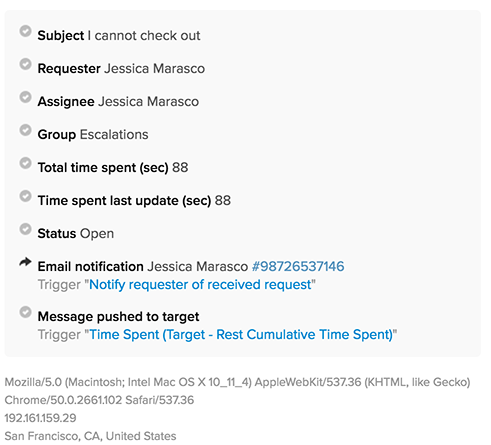
If a field's value was changed, the new value appears along with the crossed-out previous value, allowing you to easily see what changed.
For example, if an agent changed a ticket status from Open to Pending, the update appears in Show all events like this:
- To preview the email sent for that notification, click the ID next to a notification.
- (Enterprise only) To view the specific version of any trigger that fired, click the trigger's title.
- When you finish viewing ticket events, click Events, then select Conversations.
Comments
0 comments
Please sign in to leave a comment.